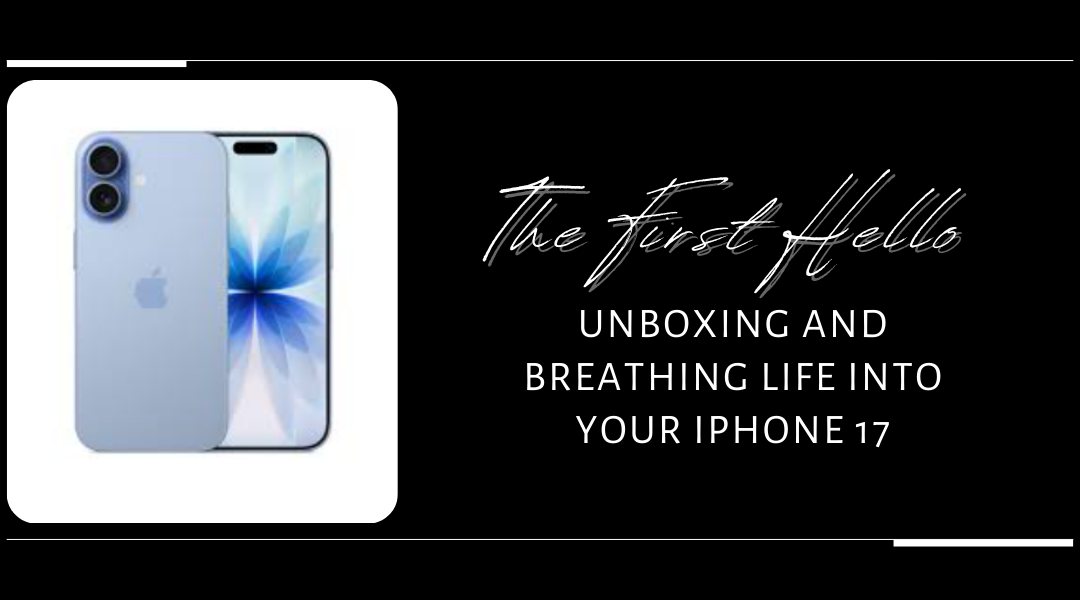
There’s a little bit of magic in opening a new iPhone box. It’s a ritual that promises new possibilities, whether you’re a seasoned Apple devotee or a first-time user stepping into a new digital world. That sleek white box is more than packaging; it’s the starting line.
This content is your personal guide through those first crucial moments. We’ll go beyond just plugging it in. We’ll walk through the unboxing, the initial handshake with your device, and the thoughtful setup choices that transform this beautiful piece of technology into your iPhone, perfectly tuned for the way you live. No prior knowledge needed, just a sense of anticipation. Let’s get started.
The Unboxing: A First Look at Your New Companion
Apple’s packaging is famously minimalist, and the experience is designed to be intuitive. Slide the lid off the box, and you’ll find everything arranged with a quiet precision. Here’s what’s waiting for you inside that pristine package.
The Star of the Show
Nestled on top is your iPhone 17, sheathed in a thin, protective film. It feels substantial yet elegant in the hand—a perfect balance of glass and aerospace-grade aluminum or stainless steel, depending on your model. That initial peel of the film is a satisfying first act of ownership. Before you do anything else, take a moment. Hold it. Appreciate the craftsmanship. Notice the refined edges and the brilliant finish of the display, even while it’s off. This is your canvas.
The Essentials Kit
Beneath the phone, in a slim cardboard tray, you’ll find the essentials:
- The USB-C to USB-C Cable: This isn’t your old cable. It’s a sturdy, woven-design cable capable of super-fast charging and blisteringly quick data transfer. It’s the lifeline between your iPhone and power or your computer.
- The Documentation Slip: A slim packet containing the essential legal and safety information, along with the iconic Apple logo stickers. It’s worth a quick glance for warranty details.
- The SIM Ejector Tool: A small, metal pin. You’ll find it tucked into the documentation or in a tiny cardboard sleeve. Hold onto this—it’s the key to the SIM card tray. (If you’re using an eSIM, you might not need it immediately, but it’s good to have.)
A Quick Note on What’s Not There
You may notice there’s no wall plug (power adapter) and no headphones. This isn’t an oversight. Apple made this shift a few years ago to cut down on electronic waste, reasoning that many users already have compatible chargers. It’s an environmental choice. If you’re upgrading from an Android phone or this is your first smartphone, you’ll need to pick up a USB-C power adapter separately. Any reputable brand that supports USB-C Power Delivery (PD) will work, though Apple’s own 20W or higher adapter is optimized for the fastest, safest charging.
Pre-Flight Check: Smart Prep Before You Power On
Resist the urge to hit the power button immediately. A few minutes of preparation now will ensure a buttery-smooth setup.
- The Great Peel: Carefully remove all the protective films from the front and back. They’re designed to come off cleanly. This is also the perfect time to put on a screen protector if you’ve purchased one—doing it on a pristine, dust-free screen is much easier.
- The Once-Over: Under good light, give your iPhone a gentle inspection. Check the screen, the camera lenses, and the frame for any tiny imperfections or signs of damage that might have occurred in transit. It’s rare, but it’s best to note anything immediately.
- The SIM Decision:
- Physical SIM Users: If your carrier provided a physical nano-SIM card, have it ready. Locate the SIM tray on the frame of the iPhone (the exact spot varies by model—check the quick-start guide). Use the ejector tool to gently pop it open.
- eSIM Users: If you’re going the digital route, fantastic. You’ll need to know your carrier account details or have a QR code from them ready for the setup process. Make sure your current phone is nearby if you need to call your carrier for activation.
- Physical SIM Users: If your carrier provided a physical nano-SIM card, have it ready. Locate the SIM tray on the frame of the iPhone (the exact spot varies by model—check the quick-start guide). Use the ejector tool to gently pop it open.
- Connection is Key: The setup process requires an internet connection. Ensure you know your home Wi-Fi password. If you’re activating with a cellular plan, make sure you’re in an area with strong signal.
The First Charge: A Little Patience for a Strong Start
While your iPhone 17 will have some battery charge out of the box—enough to get started—I always recommend giving it a proper first meal. Think of it like welcoming a guest; you offer them a drink and a moment to settle in before asking them to work.
- Plug your USB-C cable into a compatible power adapter (20W or higher is ideal for speed).
- Connect the other end to your iPhone. You’ll hear a subtle chime and see a charging icon if the screen is awake.
- Let it charge for at least 15-20 minutes. This isn’t just about battery percentage; it allows any essential firmware that shipped with the device to stabilize and ensures you won’t be interrupted mid-setup by a low-battery warning. You can absolutely begin setup while it’s charging—the cable is long enough to handle comfortably.
This simple step is a habit of seasoned tech users. It’s a small investment that pays off in a frustration-free first experience.
The Awakening: Powering On and the “Hello” Screen
Now for the moment you’ve been waiting for. Find the side button (on the right edge of the device). Press and hold it for a second or two. You’ll feel a subtle haptic tap—Apple’s signature tactile feedback—and the screen will illuminate with a stunning, colorful “Hello” in dozens of languages.
This isn’t just a greeting; it’s the beginning of a conversation. Swipe up from the bottom of this screen to begin. You’ll be greeted by a friendly, visually clean interface that will guide you step-by-step. It feels less like filling out paperwork and more like being personally walked through the process by a helpful expert.
- Choosing Your Language and Region: This sets the foundation for everything from date formats to available apps and services.
- Connecting to Wi-Fi or Cellular: Select your network, enter your password, and you’re online. This connection is what allows your iPhone to verify itself with Apple’s servers and prepare your personal space in the cloud.
Data & Privacy: Your Personal Setup Crossroads
The next few steps are the most personal and important part of the entire process. This is where you decide how your new iPhone will relate to your digital life.
The Quick Start Option (For Upgraders)
If you have a previous iPhone running iOS 11 or later, something wonderful happens. Bring it close to your new iPhone 17. An animation will appear on your old screen—a swirling cloud of dots. Center that animation within the viewfinder that appears on your new iPhone. It’s like scanning a magical QR code. This triggers Quick Start.
Your new iPhone will ask if you want to transfer all your settings, preferences, and data directly from your old device. It’s like your digital self walking from one room into another. Your Wi-Fi passwords, home screen layout, health data, and even your wallpaper make the jump. It’s the fastest, most seamless way to feel instantly at home on your new phone.
The “Set Up as New” Path (For New Users or Fresh Starts)
If you’re new to iPhone, coming from Android, or simply want a clean slate, choose “Set Up as New iPhone.” This is a blank canvas. You’ll manually sign in with or create your Apple ID—your passport to the Apple ecosystem. You’ll then be guided through essential settings like Face ID, where the iPhone learns the unique contours of your face to unlock securely, and creating a passcode as a backup.
The Android Switch
Apple knows not everyone is coming from an old iPhone. If you’re switching from an Android device, there’s a dedicated “Move Data from Android” option during setup. You’ll be prompted to download the “Move to iOS” app on your Android phone. It creates a private, encrypted Wi-Fi network between the two phones to securely transfer your contacts, message history, photos, videos, and even your free apps. It’s a remarkably thoughtful bridge between worlds.
The Final Touches: Making it Yours
Once the heavy lifting of data transfer is done, you’ll go through a series of personalized preferences:
- Siri: Your voice assistant. You can train it to your voice now or later.
- Screen Time: You can set up app limits and downtime right from the start—a healthy habit for digital wellbeing.
- App Analytics: Choose whether to share diagnostic data with Apple to help improve software (it’s anonymized).
- Display & Text Size: Preferences like Dark Mode and text size can be set immediately.
- Essential Services: You’ll be asked to set up Apple Pay (for contactless payments), iCloud Keychain (for secure password storage), and Find My (to locate your device if it’s ever lost).
Take your time here. These aren’t just bureaucratic checkboxes; they’re the levers and dials that control your phone’s personality and how it serves you.
Conclusion: Your Journey Begins
When the setup process completes, you’ll arrive at your new home screen. It’s clean, pre-loaded with Apple’s core apps, and ready for your personal touch. That first charge is still ticking away in the background, and your digital life—photos, messages, notes—is either restored or waiting to be built.
This initial content is about more than technical steps. It’s about establishing a relationship with a tool that will be your camera, your library, your communicator, and your window to the world. By taking these moments to set up thoughtfully, you’ve ensured this relationship starts on solid ground.
The real adventure starts now. Swipe, explore, and arrange it to suit your life. Your iPhone 17 is no longer just a device in a box. It’s awake, it’s personalized, and it’s yours. Welcome.